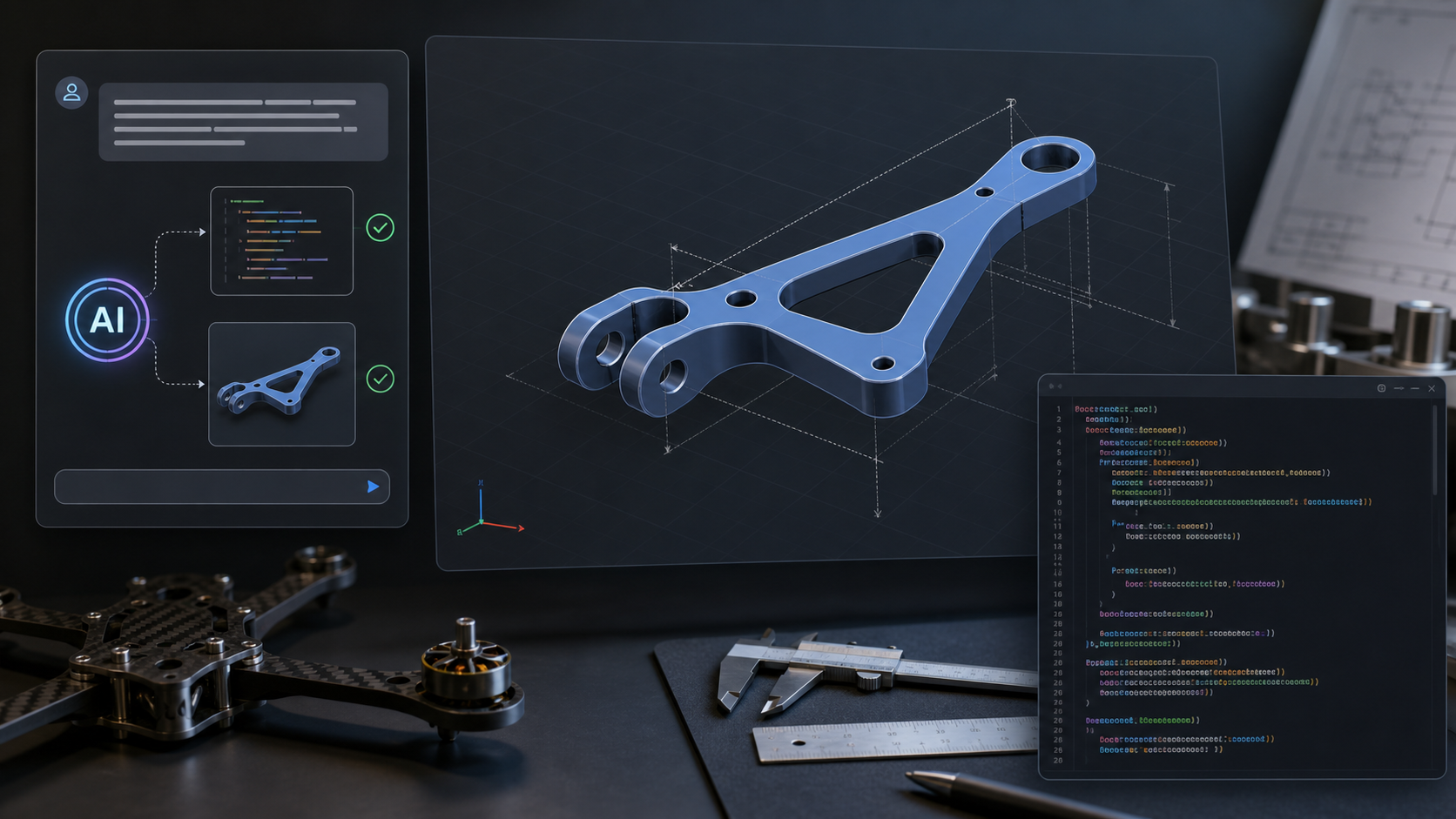
CadQuery supports pip installation, and uv can manage the virtual environment and package installation. The official CadQuery docs still describe conda as the more mature route, but pip is supported on Linux, macOS, and Windows.
Use a stable Python version. Avoid the newest Python if CadQuery dependencies have not caught up yet.
importcadqueryascqlength=80width=30thickness=8hole_diameter=8part=(cq.Workplane("XY").box(length,width,thickness).edges("|Z").fillet(3).faces(">Z").workplane().pushPoints([(-25,0),(25,0)]).hole(hole_diameter))cq.exporters.export(part,"bracket.step")cq.exporters.export(part,"bracket.stl")print("exported bracket.step and bracket.stl")
CadQuery is a good fit for Codex because the CAD model is normal Python code. Instead of clicking features in a GUI, you can ask Codex to change dimensions, add holes, add fillets, or split the model into named parameters.
Create a CadQuery model for a simple mounting bracket.
Use named parameters for length, width, thickness, hole diameter, and fillet radius.
Make the script work in CQ-editor with show_object(part).
Keep the model simple and explain each modeling step.
Modify this CadQuery part:
- add two counterbored holes on the top face
- keep all dimensions as named parameters
- export STEP and STL from a command-line version
- explain which dimensions control the hole spacing
Review this CadQuery script for fragile selectors, hard-coded dimensions,
and places where changing one parameter will break the model.
Suggest a cleaner parametric structure.
Practical workflow
Start with a rough part description.
Ask Codex for a CadQuery draft.
Run it in CQ-editor.
Fix one modeling issue at a time.
Move magic numbers into named parameters.
Export STEP for CAD/CAM and STL for printing.
Keep the first models small. A simple bracket with holes and fillets is a better
first test than a full assembly.
# Olympic Plate and Bar Storage Rack Design Brief

## Summary

Design a freestanding welded-steel storage rack for Olympic weight plates and one Olympic bar. The plate storage should follow the floor-rack layout from the first reference image, with plates standing vertically in repeated slots. The bar storage should follow the second reference image, with the Olympic bar held horizontally on rear cradles integrated into the rack.

This document records the design intent and default parameters for the CadQuery storage rack model.

## Intended Layout

- Store 10 Olympic plates vertically in a row.
- Use repeated divider hoops between plate slots to keep plates upright and separated.
- Use lower rails and cross tubes to support the plates and stabilize the frame.
- Add rear upright posts with two horizontal cradle hooks for one Olympic bar.
- Keep optional simplified placeholder plates and a placeholder bar in the CAD model for visual scale.

## Default Parameters

All major dimensions should remain named parameters in the CadQuery script.

```python
plate_count = 10
plate_outer_diameter = 450.0
plate_center_hole_diameter = 50.0
max_plate_thickness = 45.0
plate_slot_clearance = 15.0
bar_length = 2200.0
bar_sleeve_diameter = 50.0
Additional named parameters should control the rack frame, including tube diameter, foot width, divider height, cradle height, cradle spacing, cradle depth, fillet radius, and export filenames.
## Spacing Rule
The plate slot pitch is controlled by:
Increasing `max_plate_thickness` makes each slot fit thicker plates. Increasing `plate_slot_clearance` adds extra handling room between plates. The rack length should be derived from `plate_count`, `plate_slot_pitch`, and named end clearances.
## Export Workflow
The command-line CadQuery script should export both STEP and STL:
## Assumptions
- This is a parametric concept CAD model, not a certified structural design.
- The fabrication style is welded steel using simplified round-tube geometry.
- Tube wall thickness, weld beads, exact fasteners, and load certification are out of scope for the first model.
- Default Olympic plate diameter is 450 mm with a 50 mm center hole.
- Default thickest plate is 45 mm until actual measured plate thickness is available.
- The Olympic bar is stored horizontally behind or above the plate rack on two integrated rear cradles.
## Verification
After implementation, verify that:
- The script runs with `uv run python main.py`.
- STEP and STL files are regenerated successfully.
- The model shows 10 plate slots.
- The slot spacing follows `max_plate_thickness + plate_slot_clearance`.
- The rear bar cradles are visible and aligned.
- Placeholder plates and bar do not intersect the rack frame.
```